Why Your PDF Resume Breaks in Microsoft Word (And How to Fix It)
Loading image...
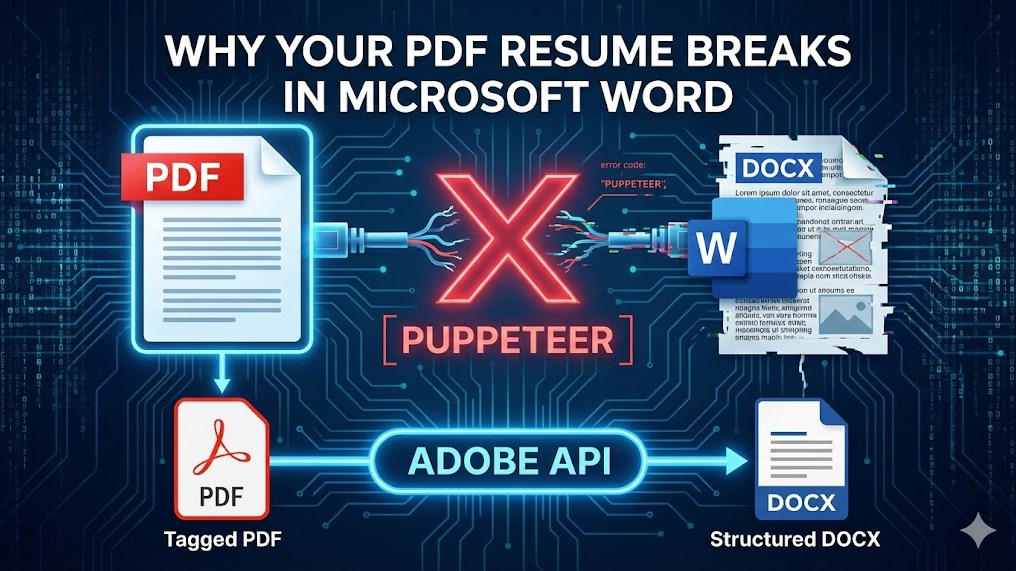
You spend hours perfecting your resume layout. The CSS Grid is perfect, the margins are aligned, and it looks beautiful in Chrome. You export it as a PDF and send it to a recruiter.
Two days later, they reply: "Can you send a Word doc? Our system can't parse the PDF."
You convert your PDF to DOCX, open it, and panic. Your beautiful two-column layout is destroyed. Text is overlapping, your "React" skill is floating in the header, and your contact info is gone.
The Problem: "Screenshots" vs. "Structure"
Most free resume builders use a technology called Puppeteer. In simple terms, they take a high-resolution "screenshot" of a webpage and save it as a PDF. While this preserves the visual look, it destroys the underlying document structure.
When you try to convert that "screenshot" PDF back into an editable Word document, Microsoft Word has to guess where the text boxes belong. It almost always guesses wrong.
The Solution: Tagged PDF Structures
As developers, we know that DOM structure matters more than just pixels. That is why we built Resumemind differently.
Instead of taking a screenshot, we use the Adobe PDF Services API to generate a "Tagged PDF." This means:
- Your "Skills" section is explicitly tagged as a list.
- Your "Experience" headers are tagged as H2s.
- Your columns are defined as legitimate document columns, not floating text boxes.
Why Recruitiers Need DOCX
Many Applicant Tracking Systems (ATS) are older than the frameworks you use. They struggle to read complex PDFs. A clean, structured DOCX file is the safest format to ensure your "Java" and "Python" keywords are actually counted.
🚀 Test Your Resume's Integrity
Stop sending broken files. Generate a resume that works in both PDF and Word perfectly.
Build a Crash-Proof Resume →
0 Comments
No comments yet. Be the first to comment!